 CleanDisc
Proof, not guesses
CleanDisc only cleans folders on a built-in allowlist. Each category explains why it is safe and links to Microsoft, Chromium or Mozilla documentation that you can check yourself.
Free for Windows 10 and 11
CleanDisc finds temporary files and caches that Windows and your apps can safely recreate, shows you exactly what it found, and removes them only when you say so. It is free, and it never tries to sell you anything.
MSI installer · 64-bit Windows 10 and 11 · v1.0.17
Free
No trial, no paid version and no account. CleanDisc costs nothing.
No ads
No banners, pop-ups or nagging. The window shows your disk and nothing else.
No other products
No bundled toolbars, no recommended software and no upgrade screens.
No telemetry
CleanDisc never connects to the internet and sends nothing about you or your PC.
Three steps, and you are in control the whole way.
Click Investigate. CleanDisc looks through a fixed list of safe locations. Nothing is deleted at this stage.
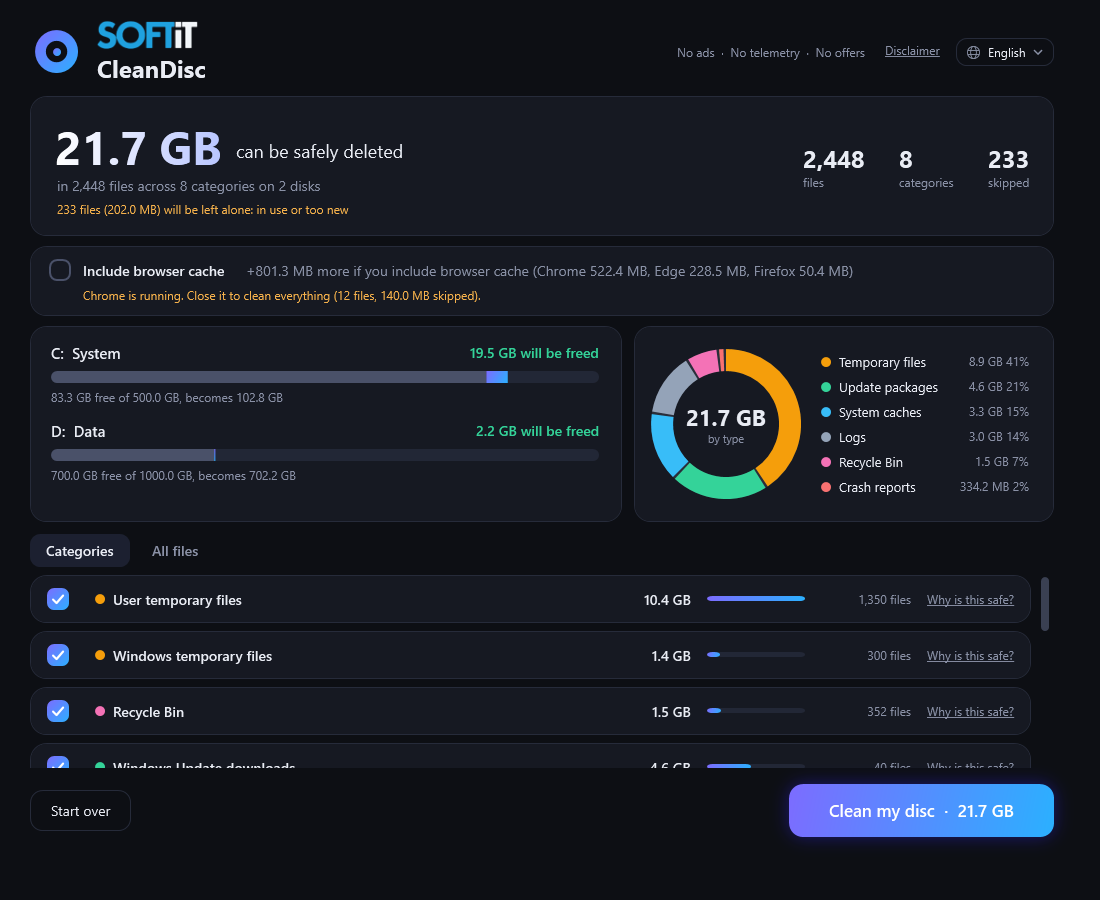
See how much each disk can free, split by type, and browse every single file on the list.
The Clean my disc button appears only after Investigate. Each file is checked again right before it is removed, and files in use are skipped.
A disk cleaner should be simple, honest and careful. This one is.
CleanDisc only cleans folders on a built-in allowlist. Each category explains why it is safe and links to Microsoft, Chromium or Mozilla documentation that you can check yourself.
Investigate lists the files with their size, age and type, per disk, before anything is removed.
Every file passes the same safety checks at Investigate and again when cleaning: protected names, links, system files, minimum age, files in use, and unchanged since Investigate.
Cache for Chrome, Edge and Firefox is an optional checkbox that is off by default. Cookies, passwords, history and bookmarks are never touched.
No ads, no account, no telemetry and no network access. A log of each clean stays on your PC.
Swedish, Norwegian, Danish, Finnish, German, English, French, Spanish and Portuguese. Switch at any time.
Only files that Windows or your browser can recreate. The browser cache is optional.
Anything that is not on the allowlist is left alone.
Yes. CleanDisc is free to download and use. There is no trial period, no paid version and no account.
No. There are no ads, no bundled software, no recommended programs and no upgrade pop-ups, neither in the installer nor in the program.
No. CleanDisc has no telemetry and makes no network connections. It keeps a log of each clean and your settings (language and accepted notice) on your own PC, and they never leave it.
CleanDisc only cleans locations on a built-in allowlist, such as temporary folders, update downloads and caches. Each category documents why it is safe and cites Microsoft, Chromium or Mozilla sources. Every file is checked again right before deletion. No cleaner can give an absolute guarantee, which is why you see the full list first and decide yourself.
No. Documents, photos, music, videos, the Desktop and Downloads folders are not on the allowlist. Cookies, passwords, history and bookmarks are protected by name even inside the browser cache folders.
No. Files are deleted permanently and the Recycle Bin is emptied. That is why Investigate comes first and shows the complete list. Keep backups of anything that matters to you.
Some of the folders it cleans, such as Windows Temp and Windows Update downloads, are protected. Without administrator rights CleanDisc could not clean them.
Only if you tick the Include browser cache box. It is off by default. CleanDisc cleans the cache of Chrome, Edge and Firefox, never cookies, passwords or history. Files that are in use while the browser is open are skipped.
CleanDisc is available in Swedish, Norwegian, Danish, Finnish, German, English, French, Spanish and Portuguese, and runs on 64-bit Windows 10 and Windows 11.
Many free cleaners earn money from ads or by bundling other programs. CleanDisc does neither. It does one job: it finds files that are safe to remove, shows them to you, and cleans them when you click Clean my disc.
Open Settings, then Apps, find SoftIT CleanDisc and choose Uninstall. Nothing is left behind except the log and settings in your local app data folder, which you can delete.
Download CleanDisc, run Investigate and look at the list. You decide what happens next.
Download freeMSI installer · 64-bit Windows 10 and 11 · v1.0.17